
There’s a whole host of ways you can make the various Microsoft Office applications easier to use. In fact, most users don’t take full advantage of the options for customizing these applications to make the Office suite work better for them.
Today, we’re going to talk about one of the easiest customizations: the Status Bar. Look at the bottom of any Office application and you’ll see a bar just above the Windows Taskbar at the bottom (like this example from Word 2007):

(If you need to see the above a bit bigger, click on it for a full-sized version. Go on — I’ll wait here.)
Most users don’t know they can change the information listed on the task bar in any Office application (except Outlook, unfortunately). And it’s really easy:
- Right-click your mouse anywhere on the status bar.
- Select the option(s) you want (check marks on this example from Word 2007 indicate the option is already selected and showing up on the Status Bar):
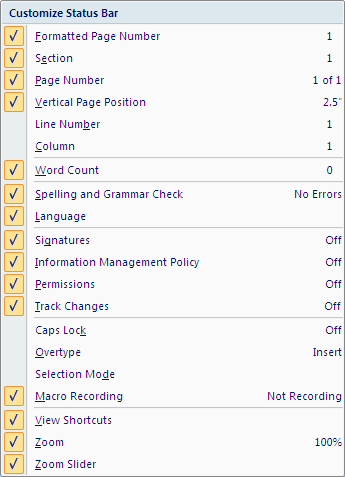
I recommend, for example, always turning on the Track Changes indicator, and I personally think the Word Count is a handy piece of information to have. Feel free to experiment with adding or deleting features — you won’t mess up your document!
- Once you’ve made your choices, click elsewhere on the screen to close the Customize Status Bar menu and save your changes.
That’s it! (That may be the easiest Word task you’ll do all day!)
Now, why is this important? Here are some scenarios to consider:
- Someone’s sent you a document to review/revise and left Track Changes on, so when you start typing, Word starts redlining the document. With the status bar set to show the status of Track Changes, you can simply click on that section once to turn it off. That’s much simpler (and faster) than going to the Review tab, dropping down the Track Changes menu, and turning it off there.
- You’ve imported some text from WordPerfect and notice that the headers and footers mysteriously change mid-document. Why? The status bar gives you a clue: the section numbers at the left keep changing. (Text imported from WordPerfect often embeds random section breaks into a document, which can affect the headers and footers.) How much time would you have otherwise spent trying to troubleshoot that problem?
- Ever wanted to get a quick sum or count of highlighted cells in Excel without creating a formula? Change the status bar to show Count and Sum. You can also get quick calculations of Averages, Minimums and Maximums in the status bar.

Great tips on a sorely underused area of Word!
I’ve turned on the Macro Recording in the Status bar because there is no faster way to get there. One click and it’s on. Record away. One more click and it’s off.
And our users love Track Changes turned on for easiest access to that function.
I consider myself an accomplished user of MS products and had no idea I could tweak the status bar. Sheesh to me and thankyouthankyouthankyou to you.
Yeah, it doesn’t exactly scream, “Right-click me! Right-click me!” hiding down there, does it? 🙂 Glad the tip helped!
I have Office 2011 for Mac. I definitely want to customize the status bar (specifically in Excel: I like how, when you select a range of data in Excel for Windows, it tells you the sum, average, count, etc, but in Mac it will only tell you one at a time, and you have to select which you want from a drop down menu there.) but I can’t figure out how! Any ideas?
PS I tried the right-clicking, obviously… no dice. Nothing comes up in any of the Office applications for Mac.
Unfortunately, I don’t have a Mac, so I can’t tell you how this functions works in Office for Mac. Try posting a question at http://answers.microsoft.com/en-us/mac or searching the knowledge base at http://support.microsoft.com/gp/cp_macoffice2008_master.
Did you ever find out how to do this? I am running into the same issue. I love how excel for windows displays everything but it is a bit of a pain that the mac version only does one at a time.
Unfortunately, since I don’t have a Mac, I have no way to test any solution. Perhaps an Office for Mac expert (like someone at one of the two links above) can be of more help.
Can one copy a value (sum, say) displayed on the customized bar, and then paste it into a worksheet cell? How?
Thanks.
If you select the cell you want to copy a formula from, then click into the Formula Bar up top — it looks like this:
… you can select the text of the formula to copy it (CTRL-C). Once you have the formula copied, you can select the cell you want to paste that formula into and use CTRL-V to paste it.
Unfortunately my employer has the status bar locked so we cannot add/remove any items but they have included all the above so it is all good! 🙂
Dear Office Guru
(Office 2013, Windows 7): How do I change the color of the Status Bar? It is green – which I don’t like! I have already tried the “file>account” options of white, light grey and dark grey, but this is not what I was looking for. Also, the right-click options window (shown above) does not have a color option. Thanks in advance for any help.
Max
That’s a Windows function, not an Office function. Go to Control Panel (on the right-hand side of your Programs listing when you press the Start Button in Windows), then Display, then Personalization. You need to change your theme to change the color of the program windows.