
Legal Professionals: Stop struggling with Microsoft 365!
Produce legal work product better, faster & easier
with the software you already have!
What can I help you with?
Basic Word skills
If the New Legal Normal means you’re now creating and editing documents on your own, or if you need to sharpen your skill level to just deal with your daily workload, I’ve got legal-targeted training to get you up-to-speed fast.
Document formatting
Whether you’re trying to undo an “oopsie”, fix a formatting nightmare you inherited from someone else, or just learn to work with Word rather than against it, I’ve got some great sanity-saving tips for you.
Brief formatting
Tables of Authorities, Tables of Contents, special pagination requirements … legal briefs can be a headache! I can walk you through the formatting minefields and give you lots of time-saving and frustration-busting tips.
Autonumbering ¶s
Get Word to automatically number not only your paragraphs, but your headings and paragraph lead-ins, too! View all my tutorials on automatically numbering paragraphs and other things, too.
Word Styles
Think you don’t use Styles? Think again. Every piece of text in a Word document has a Style attached, and Word has over 200 built-in Styles. Learning this high-leverage feature could save you untold time & frustration.
WordPerfect to Word
Moving from WordPerfect to Word can be tricky. Not only is the interface different, but so is a lot of what’s “under the hood”. If you’re converting WP docs to Word, you’ll want some specialized help with common problems.

Who’s behind Legal Office Guru?
Hi, my name’s Deborah Savadra, and I’m the chief blogger (and everything else) at Legal Office Guru. Over the course of my career (which has been more like a careen), I’ve worked in law offices as a legal secretary, paralegal, and technology “fixer upper.” I left the legal field briefly in the 1990s to work as a programmer/analyst in the Information Technology field, then started my own consulting firm in 2000.
I’ve spent considerable time since then providing training for local law firms, including those who are transitioning from WordPerfect to Word as well as those simply looking to improve their staff’s current skills with the Microsoft Office suite. I currently work as an applications trainer in a medium-sized U.S. law firm, so I’m right there in the trenches with you!
This blog is my attempt to educate legal professionals everywhere, doing what I can to improve efficiency, reduce stress, and generally make life in a law office easier!
Learn to work with Word rather than against it.
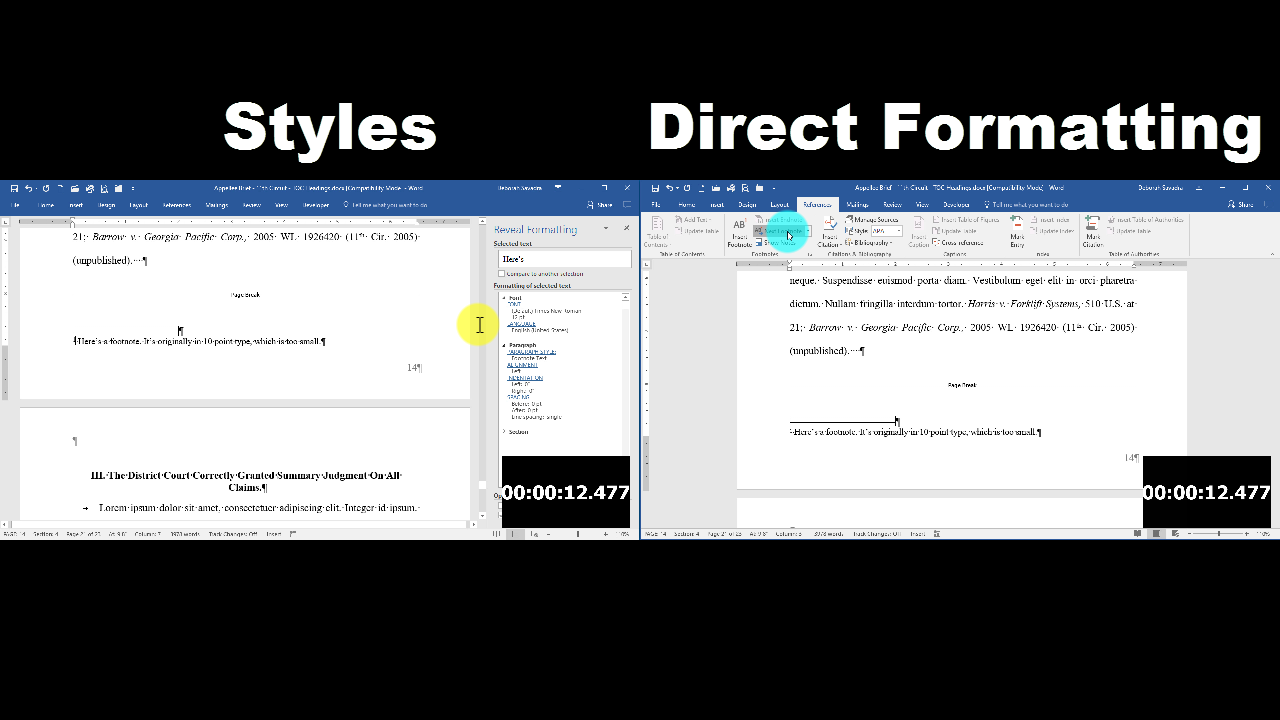
What if you had to resize all your footnotes?
Most Word users do things the hard way and then wonder why daily work feels like such a struggle. If you learn to work with Word the way it’s actually designed, though, everything becomes a lot easier. As just one example, the 33-second video demonstration at left shows you just how much faster you can reformat a Word document if you know how to use Styles.
Where I’ve been seen




What others are saying about Legal Office Guru …
“If you are like me and still struggle with even so-called basic aspects of Word, you need to immediately become familiar with Legal Office Guru and its excellent guides. You should also know that Deborah is very engaged with her community and spends endless hours responding to email questions and requests and incorporates in suggestions received from her user group into her tutorials. That, in and of itself, makes Deborah and Legal Office Guru a treasured resource for me.”
“One of my frustrations in Word has been how to copy just the text in a specific column in a multi-column layout in Word. I am frustrated no longer: I came across the Legal Office Guru blog and a great tip on Copying vertical columns of text in Word. … Legal Office Guru has a short and simple video tutorial on [this feature]. Simple, quick and easy – this is my kind of tip and it is one that will save me time and angst in the future.”
(and former Legal Practice Management Advisor with the State Bar of Wisconsin)