
Ever needed to be able to change the page numbers in the middle of a Microsoft Word document (an appellate brief, for example)? Like, switching from Roman numerals to Arabic numerals or just not having page numbers at all? Don’t tear your hair out, my pretty. Help is here!
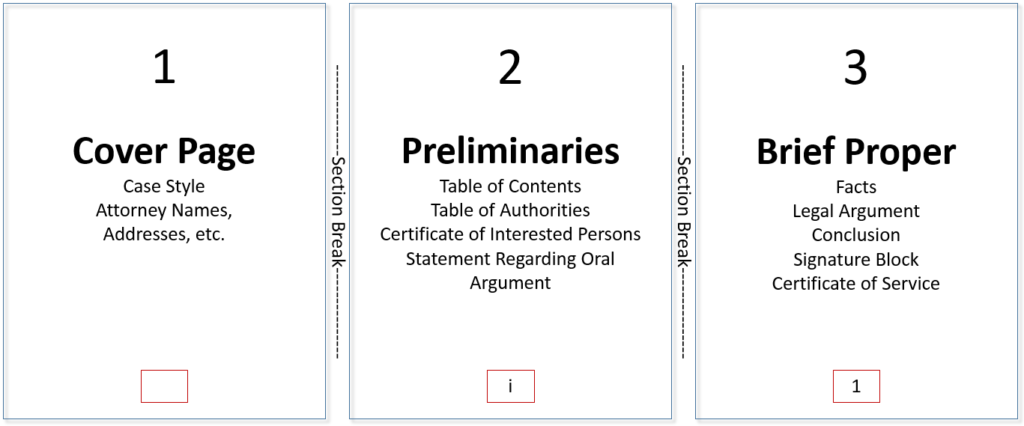
The secret to doing this is found in the Word feature called Sections. Sections will (among other things) allow you to have distinct headers and footers on different pages of the document. So, using that appellate brief as an example, you can have no page numbers showing up on your cover page, those little lower-case Roman numerals (you know, i, iv, ix, etc.) on the pages with the table of authorities, etc., and start yet again with regular Arabic numbers (1, 2, 3, etc.) when the main part of the brief starts.
It’s exhausting to even think about, isn’t it? But, as I say, it’s easy … when you know how. And this is a trick that will serve you in good stead in other situations. For instance, ever have one of those long agreements where everybody gets their own signature page because they’ve got to execute the agreement in subparts and send the pages back? And of course, somebody (I won’t name any names) wants each signature page to have its own customized header. Well, the next time you’re asked, “Can we do that?” you can answer confidently, “Yes, we can!” (Where have I heard that phrase before?)
Okay, this is such a cool trick that the video gets divided into two parts: one for setting up the sections correctly, and one for setting up the footers and the page numbers.
Whew! Okay, that seems like a lot of steps, but there are really only three:
- Insert section breaks between the pages where the pagination style will change. In the demonstration brief, there was one section break between the title page and the first page of the Tables of Contents/Authorities, and another section break between the Tables of Contents/Authorities section and the main body of the brief.
- Break the link between the Section 1 footer and the Section 2 footers by toggling off the Same As Previous button/checkbox so you can insert distinct page numbers in each section
- Insert the appropriate style of page number in each distinct footer, remembering to not only format the style of the page number, but also to start page numbering again at “1” (or “i”) at the beginning of each new section.
Now, I know this seems complicated, but I promise, once you get the hang of it, you’ll understand the logic behind the use of sections to control distinct headers/footers. (And for those of you missing the “Suppress Header/Footer” and “Header/Footer A/B” feature in WordPerfect, here’s your compensation: this allows you to have infinite sets of headers and footers in your document, not just two!)
Note: If Section numbers, etc., are not showing up in your Status Bar at the bottom of your screen in Word, click here for the tutorial on customizing the Status Bar.
This content is part of a course
What you’ve learned here is just a small part of my Brief Builder’s Workshop course, where you can learn all sorts of skills for building better briefs, such as creating a Table of Authorities and configuring a Table of Contents (two ways). Click here for more information.

THANK YOU for sharing this wonderful tutorial. Now I just need to find out how to format TOC syles to display:
TOA………….. ii – vi
I Introduction…….1, etc.
Yes, I’m having the same issue. I’m using Word 2010. I set up the sections with combinations of both Roman and Arabic numerals, but the page references in the TOC still ALL display as Roman numerals — regardless of how they are formatted in the various sections — either Roman or Arabic. Very frustrating. Is this a known issue? I tried adding number format switches to the TOC page references, but they wouldn’t take — I got an error message. Is there a problem with the template? Everything else is working fine. I never had this problem in Word 2003 (never tested it in 2007, not that I can recall).
@Rebekah & @Jennifer — I’m not able to replicate your problem exactly, nor do I see anything posted in answers.microsoft.com that indicates a bug.
I have noticed, however, that if I remove/reinsert a Section Break, that can get things messed up. Be sure that ALL of your section breaks are Next Page Section Breaks; if you have any Continuous Section Breaks, that may throw things off (not that this numbering scheme won’t work in that situation, but it just becomes more complicated).
Also, be sure that you don’t have Different First Page or Different Odd & Even Pages checked when you’re editing your footers.
If all else fails, contact me via the Ask the Guru page and let’s see what else can be done.
Thanks so much. I’ll explore some of the options you mentioned. I’ve never encountered this issue before either, and the document was originated by another user, so maybe something “happened” along the way, before I got to it. Replacing the Section Breaks sounds promising. I’ll give that a whirl. Appreciate it.
I was literally in tear trying to figure out how to do this. The only thing that I did not know how to do was breaking the link between sections. I should have looked on the web for help as this would have saved me an hour and lots of stress.
Thank you so much!
what if the page numbing has the of in the middle 1of 1 when you break the page. ps tx
Great tutorial, thank you!
This was so useful! Amazing tutorial, i had no idea how to do it before.
Helpful website; first time… I am preparing a court filing and have several pages before the beginning of the brief which includes a cover page, table of contents and table of authorities, which are page numbered with small romans (i, ii, etc.). The body of the brief then starts with regular page numbers. When I generate the table of authorities, it is including the small romans pages in the page count thereby adding 5 pages onto the page number… so the table of authorities shows a particular case cite as being on page 13, when it is actually on page 8.
Thanks for your help.
Dhowell
Did you re-start the page numbering at “1” for the main section of the brief? If you did not take this step, that might explain why the Table of Authorities is confused.
I did, and in fact, after I closed the document and opened again, it recognized the correct page numbers.
One other issue I had with the same document was marking for Table of Contents. The headings were in an outline form (I., A, 1., etc.) and when I went to an Outline document view and marked the headings, it would add a number in front of the TOC mark. Any ideas?
Am so glad to find your website… seems many of the other sites do not understand legal document formatting.
Thank you
DHowell
Wow, thank you so much, I have been all over the internet trying to find simple instructions, and someone always leaves out some critical step. I had a 350+ page document, and the front end of it looked very unprofessional. I’m using 2003, which may be archaic, but I can work with it in an emergency. I didn’t know I had a problem until I converted the doc to PDF and came up with blank pages because I did the section breaks wrong, weird page numbers, and the headers were awful beyond belief. You saved my project and I am forever grateful!!!!
Thank you for your kind guidance.your tips has solved my problem.
Thanks for your guidance
Thanks for the tutorial. The problem I am having with section breaks inserted to control page numbering is that, Word keeps adding an unclickable extra line into the header and footer of the document. This is throwing my pagination out of whack, I have tried deleting the header and the suppress lines function in the Advanced menu all to no avail. Have you experienced and found a solution to this problem? It’s driving me to depair at the moment and added an extra 20 pages to my document when the pages scrolled over : ( Thanks Yasmin
Try adjusting the header/footer margin slightly (and possibly the overall document bottom margin) to accommodate that extra line break. You’ll find that setting on the Header and Footer Tools/Design contextual tab on the right side under “Position.”
Thank you for the suggestion and for coming back to me so quickly. I will look into it : )
Thank you for the tutorial. I have a document that has 3 Appendicies, that I have numbered page numbered I, II, III using the “Insert Page Number” and formatting a capital Roman Numeral page Number. My TOC still comes up with 1, 2, 3 for the Appendicies. I tried to change the heading from Heading 1 to a Unique Heading (I called Appendix), but it is still not recognizing the different page format. I am using Word 2012. Any suggestions would be greatly appreciated. Thank you
How are you “formatting a capital Roman Numeral page number”? Are you using the Page Number Format dialog box (available under Page Number on the Design tab on the contextual Header/Footer Tools tab)? Also, you say your TOC is listing Arabic numbers (1, 2, 3) for the appendices – are the pages themselves numbered with uppercase Roman numerals? I just did a quick test on a dummy document and did not see a disconnect between the TOC and the way the pages themselves were numbered:
(You say you’re using “Word 2012” — are you using a Mac version? Because 2010 is the latest PC version.)
yes. After completing the body of the document, I did a Section Break, Next page. I made a new Footer (not linked to previous) and selected Format Page Number from the Header & Footer Tab. I selected the last option, which for me, is Roman Numerals (with capital letters). These restarted numbering with page I, Page II, Page III. However the Table of Contents shows 1, 2, 3.
As for versions, I am using Word 2010 ( that was my mistake).
I have tried using a different style for my appendicies (the chapters are Heading 1) but that did not help either.
Thanks for looking into this.
Did the solution I sent you via email work?
I’m my firm’s In-House Trainer, and I’ve been battling a similar issue. What I’ve discovered is that these documents that refuse to display the chosen page number type used in the various sections of the document are typically documents originally created in Word 2003 (or earlier), and which have been updated and re-saved umpteen times since being created so long ago. With the drastic changes that came with the Word 2007 upgrade (.doc to .docx), these older documents exhibit very bizarre behavior that cannot be recreated when starting from scratch in a clean 2010 document.
As for my issue (and Linda’s), this again is a regenerated document from way back, and has eleven different sections within it. We are trying to have the Appendices A-E show up in the TOC with page numbering corresponding to each Appendix (i.e. A-1, B-1, etc.). If you manually add the A- before the page number, it doesn’t carry over to the TOC. Trying to create a new page numbering format that includes those options has been unsuccessful as well.
I’ve gotten to where it appears Linda was too, with using Chapters linked to a Heading Style (http://support.microsoft.com/kb/290953) to identify each Appendix letter with the page number. I’ve tried all options, and the one that nearly was successful was Example 2 (which I have already sent a correction to Microsoft for the Note under step 1 to use section breaks not page breaks (i.e. “Note In Word 2007 and Word 2010, click Breaks on the Page Layout tab.”). It does pull in the Chapter designated from the linked heading style, and page 1 of Appendix A shows A-1 as desired, but so do the remaining 10 pages of Appendix A. I’ve tried telling it to continue page numbering starting on page 2, and on page 6, which had a different section break to allow formatting changes to occur between pages 5 and 6, but all only show up as A-1.
One other seemingly probable option was using Quick Parts to import the chapter number from the section and adding the page number (http://blogs.office.com/b/microsoft-word/archive/2010/10/18/chapter-headings-with-page-numbers.aspx – Example 2). Adding the Section field using Quick Parts and using letters worked, but since Appendix A is the 5th section within my document, it came in as E instead of A, and I haven’t been able to figure out how to re-order the section breaks without also re-ordering the entire document (not an option), or how to manually number the section breaks as appropriate to make Appendix A section 1, etc., which would preserve the breaks and their locations as needed, but would change the assigned number of the section break so the Appendix page numbering would be correct and transfer into the TOC appropriately as well.
So sorry for the long post, but hopefully it’ll help identify the solution needed when working with these lengthy and detailed documents with multiple sections/appendices needing to appear TOCs, and which can’t just be recreated from scratch in 2010 to eliminate all background carryovers from years past. Stopping that practice is another goal for the future, and an entirely different story.
This may or may not address your particular document, but I’ve also had issues with page numbers not updating/printing properly. In my case, the page numbers looked fine on the screen, but when the document printed, every page was numbered page “1”.
I resolved the issue by turning off background printing (File > Options > Advanced > Print (section) > Uncheck “Print in background”. If that doesn’t work, you can also try checking “Print pages in reverse order” (right below the “Print in background” option) — that really did the trick for me.
I realize that doesn’t address your TOC issue, but it sounded like the page numbers themselves were also a problem — not just the TOC.
Hope that helps.
Thank you! This is very helpful!
Hello, Your comments have been helpful in terms of changing from letters to numbers for my pagination. The issue I am having now deals with switching from the letters as a footer and the numbers as a header.
I have divided my sections and the pagination is correct, the location is wrong.
I have word 2008 on a mac
@Charlotte – If you’re trying to embed one type of page number in your header and another in your footer, I don’t think that’s going to work. I saw a document from another reader attempting the same thing recently.
Also, I don’t have Word Mac, so you probably should pose your question at http://answers.microsoft.com/en-us/mac
It was good and helpful. Thank you so much.
Wonderful article, really helped me sort my pagination out – thank you!
I am having one minor issue which is causing me to tear my hair out with Section Breaks:
Once I have applied a Section Break (Next Page), it causes the next immediate heading to change in format slightly and drop, thus my headings do not line up in perfect format! I have attempted to amend the heading, re-type it, re-format it but I simply cannot undo the voodoo cast upon it by the preceding Section Break.
This issue occurs a couple of times in my document. Any ideas?
http://i.imgur.com/4Z0DHWI.png
Sometimes, if you put a break right next to a paragraph that has some before/after paragraph spacing (as it looks like you’re doing here), it can pick up those settings for the post-break paragraph. Try putting another paragraph break just before your Section Break and re-set the paragraph settings at that point to NOT have any before/after pt. settings and see if that doesn’t fix your subsequent post-break heading.
This article and the videos were very helpful. Thank you so much!
Sometimes I work on pleadings that have section breaks at the end of a document. When I try to delete these section breaks, Word also deletes the lines and numbers from the left and right sides of my document. I have never been able to find a way to delete these section breaks without this occurring. Help!
@Becky – Try to put another hard return between the section break and the text that follows it, THEN delete the break. The break is probably too close to the following paragraph’s formatting to allow it to be deleted safely otherwise. Or put another hard return just before the section break, for the same reason.
If you want to delete all section breaks safely, you might try using Find & Replace and tell Word to replace “^b” (that’s the caret sign – you’ll find it over the “6” on your keyboard — and the letter ‘b’) with nothing. That will replace all section breaks in the document at once.
Thanks for the quick reply. Next time I have this problem, I’ll give it a try and let you know how it works.
I came across your website when figuring out how to do starting page numbering in the middle of the document. I know how to do it, but do you know how to use this page number style “Page 1 of 60”? Instead of it showing “Page 1 of 60”, I want it to show “Page 1 of 30” since it is the page 1 of the 30 pages of the second section. If you do the entire page numbering without the section breaks then, it would be Page 1 of 60. But in my case, I want 2 sections. It’s hard for me to explain. I hope someone know what I mean and can help me with this dilemma. Any help is much appreciated!
To get page 30 rather than page 60, use the field code “SectionPages” rather than “Pages”.
Thank you I will try that!
Thank you for the last answer, “SectionPages” – I could not find that and was tearing my hair out!
Greetings! Very useful advice in this particular post!
It is the little changes that make the greatest changes.
Many thanks for sharing!
FABULOUS SITE!!!!!!!!! I have FINALLY found a place that understands the legal world and all that is involved. The situation I am currently having is this: when typing and completing the document the page numbers are fine, however, if the attorney goes in and edits something, the page numbers are ridiculous. Is there such a thing of having too many section breaks? And how can that be avoided, if at all possible. I was told I have to have a section break after every page in order for the numbering to work. Is this true? Please I am in desperate need of your help.
Section breaks after every page? Yikes! No wonder your page numbers get messed up when the lawyers edit.
For pagination purposes, the only time you should insert a Next Page Section Break (one that creates a new section starting with a new page) is when you want the pagination scheme to change (e.g., start over at “1”, use Roman rather than Arabic numerals or vice-versa, etc.). Barring that, the page numbering will work just fine on its own without you inserting new Section Breaks.
Also, note that importing text from WordPerfect will often insert inadvertent Section Breaks because of the different ways WordPerfect and Word handle mid-document changes in headers and footers. If you’re finding that a Word document that you created from WordPerfect text has screwy page numbering and/or headers/footers, chances are that’s the culprit. You’ll need to go on a search-and-destroy mission for Section Breaks (which will probably NOT be Next Page Section Breaks, but rather Continuous Section Breaks – much trickier to find). See http://legalofficeguru.com/customizing-status-bar/ and http://legalofficeguru.com/so-you-miss-reveal-codes-in-wordperfect/ for tips on how to spot rogue Section Breaks in your documents.
What I have found is no one really knows do they!!!!!!!!
Every ‘techi’ expert is either wrong or so damn complicated
Hi. I’m having a slightly different issue in Word 2007 with my page numbers, but I’m hoping you can help me. My document is two columns, with continuous section breaks all over the place. All of my pages are numbered correctly (Chapter-Page), but when I insert my ToC things get wonky. The first section on the page will be shown correctly in the ToC, but any remaining sections that appear on the same page are numbered differently. For example:
The Source 1-2
The Transmitter 2
Functions 2
Calculation 1-3
Any idea what’s making this happen or how I can fix it? I’m about to throw my computer out the window, so any help would be appreciated!
What field code are you using for “Chapter” — Section? And what is the purpose of the continuous section breaks — are they the Chapter breaks? There’s no code for Section page number (just Section and SectionPages for total number of pages in the section), so I think that may be the source of your problem.
I’m using the continuous section breaks because my manual has headings in the left column and text in the right. When there are multiple sections on a page, I have to use those breaks to stay on the same page. I just set up the page numbers in the footer using the page number formatting box and checked to include the chapter number, so the field code is just { PAGE \* MERGEFORMAT }. To be honest, I can figure a lot of stuff out, but when I start reading about field codes I feel like I’m reading in a foreign language and I’m not sure what to do. This wouldn’t be making me so nuts if NONE of the entries in the ToC were showing the chapter number.
I’m not sure I can diagnose this long distance and blind. I’m still not understanding what field is driving your Chapter numbers and how the TOC is deriving them.
Amy T. — Sounds like your TOC might be treating each side of the page (heading and text) as TWO separate pages for TOC numbering purposes. Have you tried using “column breaks” rather than “continuous section breaks”? You might also try converting your entire document to a two-column table (with no borders). Just some ideas. I haven’t tried to recreate your problem, so I’m not positive it will work. But, worth a try….