
Unless otherwise noted, all instructions and screenshots are from Microsoft Office for Windows version 2016.
We have this recurring problem where I work. I bet you have it, too.Sometimes, our Word documents (particularly when they’ve been generated by our time & billing software) leave huge gaps of white space between a heading and the text that’s supposed to go right under it by mysteriously breaking the page right after the heading.Except, there’s no page break! No one’s inserted a hard page break anywhere — the document’s just stubbornly refusing to put text that will clearly fit on page 1 on page 2.What’s going on?
It’s Block Protect gone bad, that’s what. And it’s really easy to fix. So stop scratching your head and do this instead:
- Hit CTRL-A to highlight the entire document
- Go to the Paragraph dialog box (on the Home tab, click the small launcher arrow in the bottom right-hand corner of the Paragraph section)
- Click on the Line and Page Breaks tab
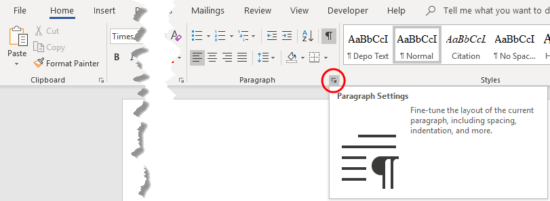
Click this launcher arrow to get to the Paragraph dialog box …
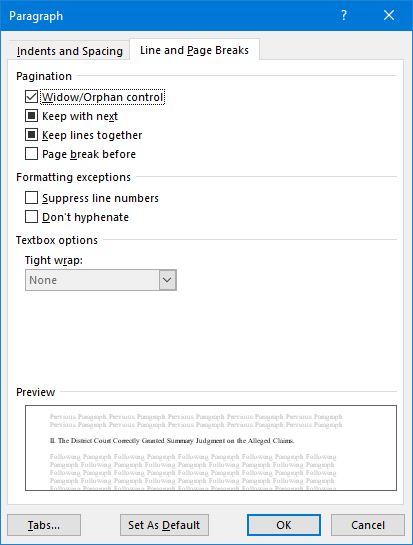
See how all those check marks under Pagination (Widow/Orphan control, Keep with next, Keep lines together) look grey or black instead of a regular checkmark? That means that some of your text is block protected and some isn’t.
I could lead you through the whole diagnostic process, show you the “reveal codes” view and let you see what’s happening. But, hey, we’re both in a hurry — let’s just fix the sucker and move on to bigger and better things. (I’ve done the long “here’s what’s happening” video on this below.)
- Uncheck all those boxes. You might have to click twice to get rid of the check marks
- Click OK to go back to your document
Voila! No more weird page breaks!
Of course, you might have to go through your document to make sure you don’t have any widows and orphans, headers at the bottoms of pages, etc., in which case you’ll want to turn block protect on for just that small section of text. But at least you’ll have a clean slate to work with.
Here’s a video (showing Word 2010 – the process really doesn’t change between versions) showing exactly how this works:
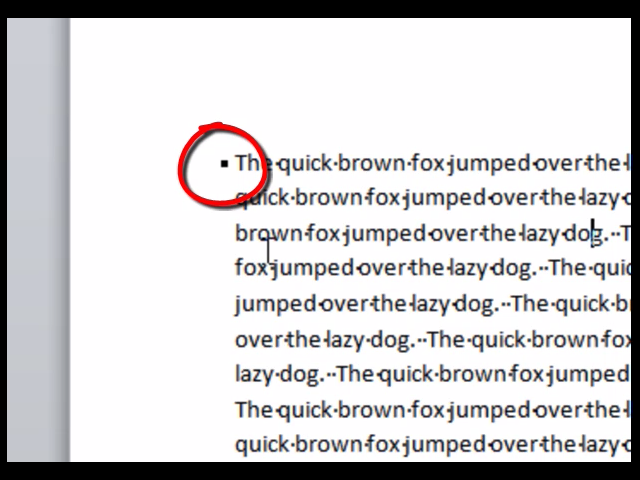
[To view full-screen, hover your mouse/touch your finger/stylus over the video screen, then click the expand button near the lower right-hand corner of the video player]

I have been looking for solutions to this for MONTHS. I officially love you.
Perfect, this worked like a charm! Thank you so much.
I’m sorry to report that this did not work for me. Any other idea???
Does your document have any other types of breaks, like manual page breaks, section breaks, etc.? See the video in this post (https://legalofficeguru.com/why-your-pages-break-in-weird-places/#diagnostic-video) for some strategies for diagnosing the problem.
I’ve tried the above procedures and they don’t work. My problem usually occurs when I generate letters from a database system. However, there have been other types of documents that have the same problem.
Your database system could be generating some other kind of break, like a next page section break. This is why it’s important to use the Show/Hide button as a diagnostic tool.
This was awesome! I needed this help so badly. You just solved a problem I’ve been having for a decade! Thank you infinitely.
OH MY GOD, THANK YOU SO MUCH! You just made my day.
I’ve literally had this problem for years. Comes up only every now and then, but when it does, it’s a doozy. This is especially a problem when editing company documents (documents that have been formatted/re-formatted every which way). Kudos to you, you really helped me out.
Thank you very much. I was trying to figure this out and word’s help was no help at all. This solvedf my weird page table breaking issue. If you’re ever in Orlando FL look me up and I’ll buy you a beer.
Thank you very much. I was trying to figure this out and word’s help was no help at all. This solved my weird page table breaking issue. If you’re ever in Orlando FL look me up and I’ll buy you a beer.
Schöner post:)
Thank you. So glad I found this.
What’s Taking place i am new to this, I stumbled upon this I’ve discovered It positively helpful and it has aided me out loads.
I’m hoping to contribute & assist other customers like its helped me.
Good job.
Wasted so many ours trying to fix this before…this works, amazing thankyou!
THANK YOU!!!!
I had a largish document, with pictures and lots of text. Many pages needed to start as a new page. All went well when – suddenly
(well, maybe after I had unticked some innocuous-looking boxes, whilst looking into Word features – I don't "remember" doing this; but I probably did!)
the pictures all disappeared and the new pages all ran on from the previous page. The pictures were not too important, but I needed the new pages. So I clicked "Insert new page" and a new line appeared at the top of the page. I tried this several times, but could not create a new page. So I Googled it and found your site. It did not appear to be quite what I was looking for, but the boxes all had a line (hyphen) in them. I clicked them all to make them blank, clicked "default" and "save". Lo and behold, I had my new pages back. Also, I could insert a new page wherever I wanted and all my pictures came back too!
Wonderful.
Thank you.
Hello. I tried this and it didn't work for me. (I knew how to do this before finding your page, but this one just does not want to cooperate.)