You’ve used Word for years. Why does it still feel like
Word is winning?
Build the Microsoft Word foundation nobody at the firm ever bothered to teach you — and stop losing afternoons to the same handful of problems.
Let’s name the thing nobody in legal support wants to say out loud:
You’ve been using Microsoft Word for years. Years. You use it every single day. And there are still moments — formatting that won’t behave, a document that came back from another firm doing things you can’t explain, a feature you’ve heard mentioned in passing but never actually understood — where you feel like you’re guessing.
That’s not a personal failing. That’s the predictable result of how almost everyone in legal support actually learned this software: by getting thrown into a job, opening someone else’s template, clicking around, and figuring out just enough to survive.
Survival is fine. But it’s not the same as fluency. And in a world where the firm keeps asking you to do more work with fewer people, the gap between “I can usually make this work” and “I know exactly what this software is doing” is the difference between leaving at 5:30 and leaving at 7:45.
Is this you?
- You’ve been using Word for a decade and there are still buttons on the Ribbon you’ve never clicked
- You came up on WordPerfect and you’ve been “translating” ever since — usually the hard way
- You’re a solo practitioner without an assistant, and every minute you spend fighting Word is a minute you’re not billing or sleeping
- You inherited templates and processes from people who left the firm, and nobody really knows how any of it works anymore
- You’d love to put “Microsoft Word proficient” on a résumé and actually mean it
- When something goes wrong in a document, your first move is to Google it — and the answers you find are confusing, contradictory, or written for a version of Word from 2010
If any of that sounds familiar, *Basic Word Skills for Legal Professionals* was built to fix it.
Why most Word training doesn’t stick
You’ve probably tried to fill the gaps before. Your firm offered an all-day class and you forgot most of it by the time you got back to your desk. You bought the book and didn’t have time to read it. You searched online and got fifteen different answers, half of them wrong.
Here’s the thing — that’s not your fault either. Traditional Word training was never designed for the way legal staff actually work. Classroom training dumps everything on you at once. Software manuals are reference books for people who already know the basics. And online tutorials are usually written by someone who has never produced a pleading in their life.
What you need is the version where someone walks up to your desk, sits down beside you, and shows you — step by step, in a context that actually matches your job — how this thing works.
That’s the course.
What you’ll learn in Basic Word Skills for Legal Professionals
Six sections, 28 lessons, about 3 hours and 20 minutes of focused video instruction (Windows and Mac), plus illustrated text walkthroughs you can keep open at your desk.
A complete tour of the Ribbon interface (6 lessons)
What every part of the Ribbon is actually called (so you can finally follow online instructions), how to hide and unhide it, how to add the commands you use constantly to your Quick Access Toolbar, how to navigate any document fast with mouse or keyboard, and how to use Backstage View to set up Word so it stops fighting you.
About 35 minutes of video.
Working with documents: the basics (7 lessons)
Starting from a blank document, starting from a template, saving, opening, basic typing and editing — and the parts most people skip past too fast: inserting special characters like ¶ § ° (with shortcut keys for next time), and the right way to copy and move text without dragging unwanted formatting along with it.
About 34 minutes of video.
Formatting basics (8 lessons)
This is where most Word users — especially WordPerfect refugees — actually live. Page formatting (orientation, margins). Paragraph formatting (justification, line spacing, indents). Character formatting (font, size, bold/italic/underline). Plus how to keep specific text on a particular page, how to insert and edit headers and footers, and how to put a watermark behind your text.
About 53 minutes of video.
Tables & columns (12 lessons)
When you need text side by side, Word gives you two options: tables and columns. Knowing which one to reach for is half the battle. You’ll learn the full mechanics — inserting and modifying tables, adding/deleting/splitting/merging rows and columns and cells, table margins and borders, sorting, header rows that repeat across pages, converting text to table and back. Plus configuring side-by-side columns, even partway through a document.
About 40 minutes of video.
Footnotes & endnotes (4 lessons)
Inserting a footnote is easy. Controlling how footnotes look and behave is where it gets weird — especially when WordPerfect-converted footnotes show up doing things you can’t explain. You’ll learn to fix long footnote formatting, reformat the separator line and continuation message, and use the Footnote Text and Footnote Number Styles so you never have to fix footnotes one by one again.
About 8 minutes of video.
Finalizing documents (6 lessons)
Don’t hit Print yet. You’ll learn to run spelling and grammar properly, use Word’s Document Inspector to strip out metadata before a document leaves the firm, and produce envelopes and labels for mailing — plus print and PDF cleanly when you’re done.
About 31 minutes of video.
Final exam + certificate of completion
Need to demonstrate your proficiency to a current or future employer? The course ends with a graded final exam covering everything you’ve learned. Take it up to five times to get your best score, then print a certificate for your personnel file (or your job application packet).
What students are saying
Your first lesson about the Ribbon came in really handy when I had a formatting problem. By hitting the little arrow in the lower right corner on the Indent and Spacing section of the Page Layout tab, I discovered that the problem text was centered or justified, which was causing the wide gaps between words. THANKS!
Tom
Your instructor

I’m Deborah Savadra, and I’ve spent 30 years in the legal industry as a legal secretary, paralegal, and software trainer. I started on WordPerfect — yes, the DOS version, the one with the function-key claw — and made the leap to Microsoft Word the hard way, by way of classes, manuals, and a lot of figuring it out at 8 PM the night before something was due.
What that means for you: I’ve sat in your seat. I know what doesn’t translate cleanly from WordPerfect. I know which Word “shortcuts” actually create more problems than they solve. And after years of being the “Word expert in residence” in law firms, I’ve heard every version of “I’ve been using this for years and still don’t really get it.”
You’re not the only one. And you’re not stuck.
Is this course right for you?
No course is for everyone. Here’s who’ll get the most out of Basic Word Skills for Legal Professionals … and who shouldn’t bother.
This course is right for you if:
- You’re new to Word, or you’ve been using it for years but never felt like you really *learned* it
- You’re coming from WordPerfect and need someone to translate the essentials
- You’re a solo practitioner without an assistant who needs to cut document time
- You hand off most document work to an assistant but want enough Word skill to get unstuck when they’re not available
- You’re a legal staffer buried under the workload and looking for the foundational skills that make everything else faster
- You want a credential to put on a résumé or in a personnel file
This course is not right for you if:
- You’re an intermediate-to-advanced Word user already fluent in document creation, formatting, and Styles
- You’re looking for intermediate features like Macros, Quick Parts, or Building Blocks (those live in my other courses)
- You’re a billable employee unwilling to spend potentially billable time learning new skills
Stop guessing. Start knowing.
The work isn’t getting any lighter. The deadlines aren’t getting any longer. And the next time a document comes back from another firm doing something you’ve never seen before, you can either spend an hour fighting it — or you can already know exactly what’s happening and how to fix it.
A few focused hours now buys you back a lot of afternoons later.
Bundle options
If you’re already thinking past the basics, two bundle options can save you some money up front:
Basic Word Skills + Lawyer’s Guide to Microsoft Word Styles — $84 (save $20)
Everything in Basic Word Skills, plus the deep dive on the engine that secretly controls every Word document — Styles. The single highest-leverage skill for cutting formatting time.
Basic Word Skills + Brief Builders Workshop + Pleading Paper— $84 (save $30)
Everything in Basic Word Skills, plus the full brief-formatting toolkit — Tables of Authorities, automatic Tables of Contents, section-based page numbering, automatic numbering with List Styles, and pleading paper formatting for courts that require it.
Frequently Asked Questions
During checkout, you’ll provide your email and choose your own user ID and password. (Already enrolled in another one of my courses? Log in first so everything stays under one account.) Your purchase receipt arrives by email immediately and includes a link to the first lesson, plus detailed login instructions. The same link appears on the confirmation page after payment.
You’ll also get a series of follow-up emails that walk you through the course, with login instructions at the bottom of each one.
Go to https://legalofficeguru/login and use the login form:
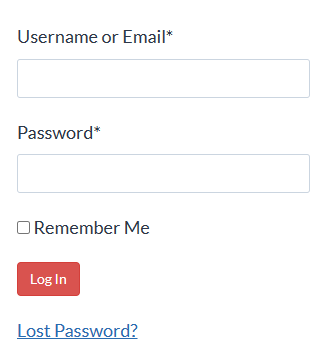
There’s also a Course Login button in the top menu on every page of my site:

Click here to see a 2-minute video tour of the lesson interface.
Email me your question at info@legalofficeguru.com — I’ll get back to you as quickly as I can.
You’ve spent enough afternoons fighting Microsoft Word. Spend a few hours actually learning it instead — and get the rest of your afternoons back.