
Getting a headache from all that Inbox overload? Chances are, almost half of those incoming emails can be handled automatically.
Think I’m joking? Take a look at what’s come in today, and I’ll show you what I mean. Out of the messages you’ve already received today, there are probably several that meet these criteria:
- Newsletters you’ve signed up for (but perhaps don’t have time to read right now)
- Electronic filing notices from the court(s) you have cases in
- Alerts from professional organizations you’re a member of
- Anything you get regularly from a given source
Once you filter those out, how many emails are left? Perhaps not that many.
If you could automate that filtering process – if Outlook could “set aside” these items for you automatically (without risking you losing track of something important), would you feel better about the state of your Inbox?
I thought so.
The answer lies in Outlook’s Rules (a.k.a. Rules & Alerts) feature.
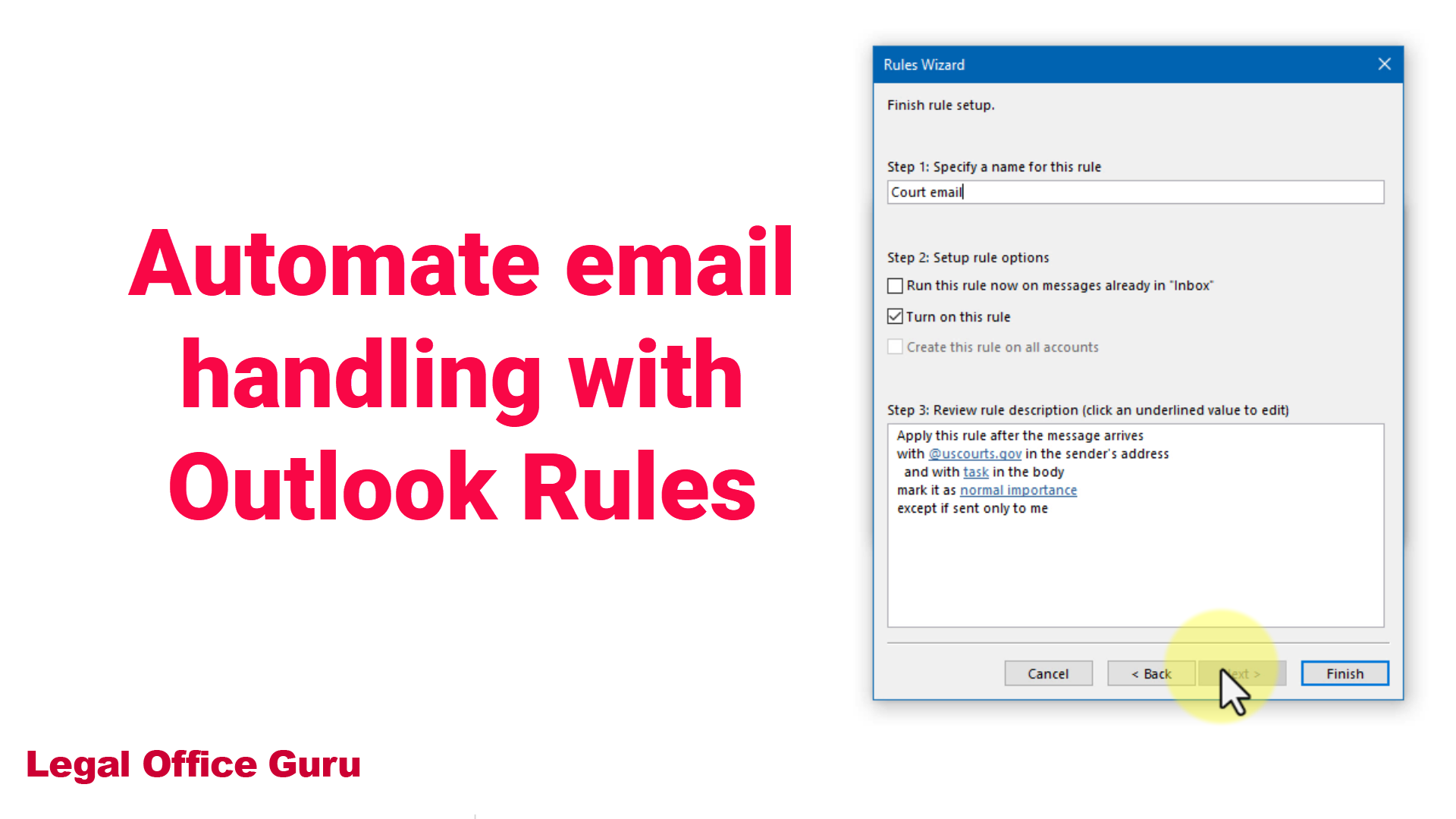
(Note: to view this full-screen, click the double-arrow button near the lower-right-hand corner of the video player.)
One example: E-filing alerts from a court
Here’s an example: Let’s say you get half a dozen (or more) automated emails from the federal court ECF filing system. Obviously, you need to deal with those – review them, save and print the associated documents, etc. But maybe not right this minute.
Wouldn’t it be nice if Outlook would catch those emails, sort them into their appropriate case folders, and flag them for you to review at a moment when you’re not running out the door for a hearing?
Or say you subscribe to a handful of newsletters in your field. Wouldn’t it be easier to deal with your Inbox if Outlook could sort those out, leaving only the emails that need immediate attention?
Regardless of what version of Outlook you’re using, from 2010 on (i.e., any of the versions that have the Ribbon), the process of setting up a rule is pretty much the same. Here’s how you start the process:
- Go to the Home tab
- Click the Rules dropdown
- Click Create New Rule
Okay, now that you’ve gotten that far, let’s look at how you can set up your own Rules to deal with mail:
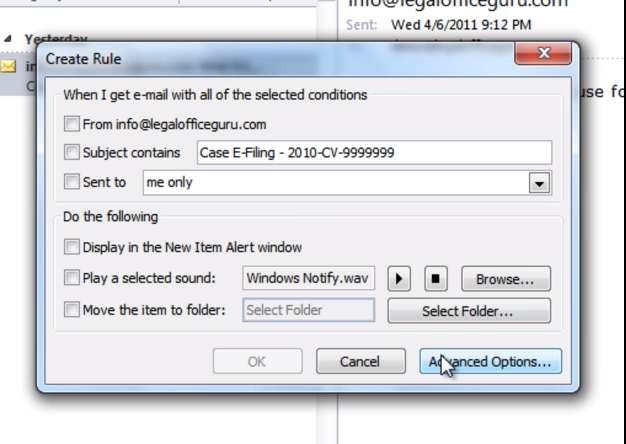
As you can see from the above video, there are lots of situations Rules can help with. My own “best practices” includes a rule that flags all incoming email with “uscourts.gov” in the sender’s address (which will capture all ECF filings) for follow-up within one day:
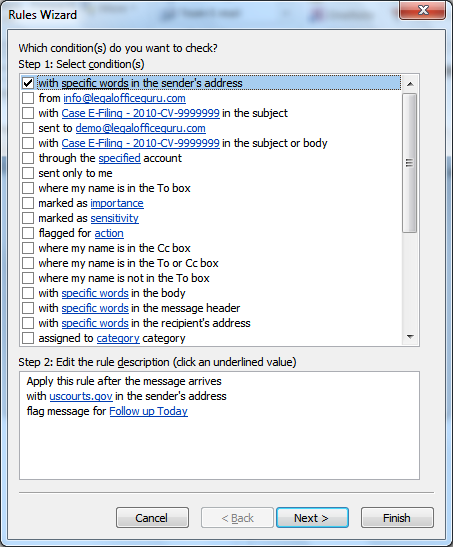
USCourts.gov Rule – Capturing all messages from uscourts.gov email domain
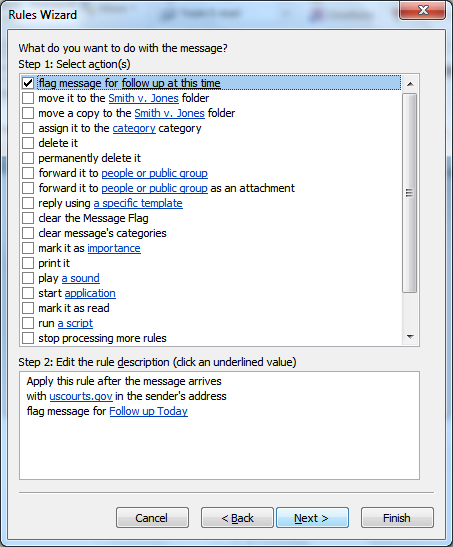
USCourts.gov Rule – Step 2: Flagging all captured email for follow-up within 1 day
One caveat: Some versions of Outlook automatically check the stop processing more rules checkbox when you get to the What do you want to do with the message? step. (That action is shown at the bottom of the Step 1 window in the illustration on the right above.) Be sure to uncheck that box. Unless you’ve got a specific purpose for this, it can cause the subsequent Rules to not do their thing.
This is because Rules do operate in a particular order, and every new Rule you make automatically jumps to the head of the line (unless you re-order your Rules, which is possible within the Rules dialog box and which I do every single time). So if one Rule removes an email from your inbox before another Rule has a chance to act on it, you might think your Rules aren’t doing what you told them to do.
Not just incoming mail – outgoing mail, too!
Keep in mind, too, that you can not only use Rules to process incoming mail, but also outgoing mail.
For example, I set up an outgoing email rule for a co-worker that flags for follow-up within 1 day any email she sends to a particular federal agency (she files applications for documentation, which generally include a credit card authorization for charges to the firm credit card).
Any time she sends an email to that agency’s email domain (the condition is with specific words in the recipient’s address, the variable being that agency’s email domain [replace specific words with whatever.gov]), Outlook adds a flag to the email and, within 1 day, pops up a reminder. This way, no matter how busy and distracted she gets, she receives a timely prompt from Outlook that reminds her to forward the credit card charges to Accounting to ensure they’re billed to the client.
How many different ways can you think of to use Outlook’s Rules feature to make managing your Inbox easier?

Where has the “flag message for action in a number of days” / follow up within 6 days etc rule condition gone in Outlook 2010. I used to use it in Outlook 2003 but it’s disappeared?
@Dave – Unfortunately, I don’t have Outlook 2010 yet (I’m getting a new computer soon, so it’ll be on that one), but here’s some information I turned up in the meantime:
Using Quick Steps in Outlook 2010 from TechRepublic
Add a Flag Automatically With a Rule in Outlook 2010 (from office.microsoft.com)
Just off the top, I don’t see many resources showing the process step-by-step with video or even screen shots. However, I’m going to do some more research on how the new Quick Steps interacts with/replaces some Rules & Alerts functions in version 2010, so I hope to have a more complete answer here for you soon. (I’d offer to email it to you, but it looks like you have a “disposable” email address that expires after a few minutes.)
Thanks for stopping by!
It looks like that condition still exists in version 2010 (albeit not in “X” days, but rather Today, This Week, etc., with the option of specifying another date):
What if I have a shared mailbox that I want to setup a rule for. Can I do that within my outlook or do I have to open that mailbox up through an outlook profile?
Let me ask my Exchange expert and get back to you, since that’s technically outside the Outlook client app itself.
I use Outlook 2010 and need to set up a rule on received emails to keep a copy for myself in a specific folder but also forward to 2 other people. What settings do I need to use to do this, or can it be done?
@BethD — It absolutely can be done. Here’s a screenshot of the relevant Rules Wizard window:
Both of your forwarding recipients will need to be on your contact list, and you’ll need to have a folder already established to make it your destination, but otherwise, you’re good to go. Let me know if you have any problems!
@VideoTutor – I’ve set up server based rules that move all incoming messages to specific folders. Now, I created an exception that whenever the message contains the word “RE:” or “FW:” the message is not moved (we receive a lot of reports which should be moved to subfolders automatically, and sometimes a management question about a certain report which should stay in our Inbox as to not escape our attention – hence this exception).
The issue is that whenever the reports’ sender sends the message as a reply and then removes the “RE:” part, the exception is still applied. So the message doesn’t contain “RE:”, but Outlook thinks it still does. Any suggestions?
When the message contains RE: or FW:, or when the subject line contains RE: or FW:? That could be the decisive difference, especially if it’s an ongoing conversation, because several of the previous messages (repeated in the body of the current message) would likely contain RE: or FW:.
I am using Outlook 2010, I recently had some computer problems and I wanted to run all of my rules and alerts becuae I think some e-mails did not get filed properly while I was having computer problems, there are some e-mails in my inbox that used to get filed previously. I have hundreds and hundreds of rules set up over the years. When I went into rules and Alerts and tried to run all of the rules I found I had to select all the rules individually (very time consuming) Is there a way to select all without having to check every rule individually.
@Paul – It doesn’t appear that doing the usual Windows SHIFT-CLICK trick to select the entire list of rules in version 2007 to check them all at once works in the Run Rules Now window or that there’s a Run All option anywhere. Sorry!
Version 2010, however, seems to have a Select All option.
You might want to pick the brains of some other folks over at answers.microsoft.com – perhaps someone there can suggest a solution.
I use Outlook 2010. I want a copy of all outgoing emails my children write to be forwarded to me. Currently I have a rule set up so that when an email is sent that I am cc’d. That works fine until one of their friends “replies all”, then we get two copies of the email. I really want the original message forwarded to me instead, but there is no option for that. I considered just moving a copy of the sent email to a specific folder, but I like being able to receive a copy of the outgoing emails immediately on my phone when my child is emailing from home.
Any suggestions?
You could either set up a Rule to move any messages from your children’s friends to a separate folder, or you could change your current Rule to have your copy be a bcc (which I believe would not be included in a Reply All).
Thank you for your reply. I thought a bcc option would be great too, but that is not an option when creating a rule action, unfortunately. I guess I will just have to deal with the duplicate response messages until a change is made in Outlooks :).
Maybe the “Reply All” thing will solve itself when they figure out that someone else’s MOM is being copied on their messages!
I seem to have his a block on outlook rules.
so far I have set up 87 using cloud based outlook 2010.
is there a way to change this limit as i need to set up more
See http://community.office365.com/en-us/f/148/p/55224/198062.aspx
Hi There,
Thanks for the Videos. I have set up the rules however, it doesn’t seem to be working automatically on Outlook 2010. I have my personal inbox and three other shared mailboxes.
I want the rules to look for the emails and park it in the nominated folder. It seems to be working in 2007 but stopped working automatically when I migrated to 2010.
Please advise. Thanks
Thanks,
Tanis
How did you migrate your rules from 2007 to 2010? In the past, I’ve had to actually export my rules to a .rwz file and import them into the new Outlook version.
Some of my “received” emails that I get just dissapear after the download is complete. I cannot find them in any folder. I am using Outlook 2010.
Are you using POP3, MAP or IMAP email?
Do you have your View set up to only show unread emails?
Do you have any Outlook add-ins installed? What about anti-virus? McAfee is known to randomly delete emails when it is scanning.
In other words, there could be any number of things going on. Try disabling all of your add-ins, closing Outlook, and reopening it in Safe Mode (hold Windows key + R key and type ‘Outlook /safe’ then click OK) to see if your messages are there.
My case is different. I configured the new messages to a specific folders and it works.
After 2 weeks or sometimes 2 months, the same previously assigned messages to a specific folders will fall back again to the “main inbox” and not on the previously assigned folders. Then I need to re-create the rules again.
Is there any fix on this bug? (would appreciate if you guys can Cc the answer on my email)
Does the Rule actually disappear from your Rules & Alerts dialog? Are you able to look at the list of Rules you currently have? I’ve never heard of Rules actually disappearing, so you should never have to completely recreate a Rule.
A couple of things may be happening. As you create new Rules, those appear in the list above your older Rules. It may be that any one of those Rules is set to stop processing all following Rules, so it renders those moot. Also, it may be that whatever conditions you’ve originally set up to trigger the Rule have, however subtly, changed. If you’re instructing Outlook to examine a subject line, check the latest email’s subject line against the Rule. If there’s any change, that will keep the Rule from being triggered. Rules are quite literal, so if the email doesn’t precisely meet the criteria, it won’t get processed.
Daily we send many mails. We handle the reactions of customers which send us a mail using our subject the first 7 days (not a reply). After 7 days we would like to send an autoreply and archive the mail without looking at it.
How can we do that?
As we can adapt the subject to use, first idea was to add the limit-date and set a rule. But I don’t find how to set a rule that compares the day of reception and this date included in the subject?
Sounds like you need something beyond Outlook to manage this process, like a plug-in or a completely external CRM system. Try searching for “Outlook CRM plugin” in a search engine and check for that feature in the product descriptions.
Greetings! Very helpful advice within this article!
It is the little changes that will make the largest changes.
Many thanks for sharing!
I have a rule set up to move junk from ‘NatWest Card’ spam, but every time I try to run it it comes back with ‘Cannot remove messages from folder’ + ‘You dont have appropriate permissions to perform this operation’…
Outlook 2002/Windows Vista/Administrator profile
Are you trying to remove email from the actual Junk folder? That may be prohibited outright via Rules.
Hi Guru,
I did try this out but I have a slight problem.
I tried setting the rule by domain name whereby the email sent to me or the group email address that I am in to a specific domain name for eg. xyz.com and also the email that I or my colleges send to the same domain name gets automatically saved to a specific folder. So I set the rule twice whereby if the sender email has specific characters it gets saved to a specific folder and then when the receiver’s address has the same specific characters the emails get saved to the specific folder.
But the problem is when I receive the email from that particular domain name, the email comes to me twice everytime.
I also tried setting or defining the sender and receiver with specific domain in the same rule…however while doing this the email received from the domain get saved correctly to specific folder but the outgoing email to that domain doesn’t…
So..yeah sorry if the above explanation is lengthy and doesn’t make sense..
I would really appreciate if you could hep me.
Thanks,
S
It sounds like you either have a problem with two Rules not firing in the order you want (easy to fix) or you’ve set up two Rules that may duplicate each other if one email meets two different criteria.
To solve the former problem, go into your Manage Rules & Alerts dialog (you didn’t say which version of Outlook you’re using) and move the Rules up/down with the up/down arrows in the dialog box.
I’m not totally clear on how your Rules are currently set up, so if your problem is the latter one, you may need to try to combine the criteria into one rule (tricky), but I’m not sure I could advise exactly how.
One other idea is if you don’t have many Rules, you could order them so that one Rule fires before another and if something meets criteria #1, the Rule is set to not allow any subsequent Rules to fire. That’s a setting on the Rule:
How many rules can you have please? I have 34 at the moment, but if I create another rule then it only allows a limited number of rules because every time i try to add a new rule, it “unticked” one of the existing ones. Why is Outlook restricting how many rules we can have. Is there a way round the problem please? Also my friends that belong to a local sailing club then I have given them all one category “Friends HISC” and tried to set up one rule for the lot which used to work on a previous application but now doesn’t. I have also tried dividing them A – L and M – Z but that doesn’t work, as there are 150 of them then how can I get rules to cope with them like it used to?
I have 35 rules myself, and I’ve never run into any problems with rule limits. You might, however, check to make sure that any new Rules you’re putting in place don’t have “stop processing more rules” checked in Step 2 of the Rules Wizard. That will uncheck the boxes of (and effectively disable) any subsequent rules in the queue.
Hi Deborah Thanks for reply. The message I get up is “One of more rules cannot be uploaded to microsoft exchange and have been deactivated this could be because some of the parameters are not supported or there is insufficient space to store all your rules” so then anohter rule that has been ticked gets unticked by itself. Does this make a difference?
Do you ever link several people together to share the same rule so like I have about 150 friends who belong to the local sailsing club can they all go into one rule and if so how do I achieve it without it giving me the message above?
When you say about Riles wizard is that in the manage rules or when creating rules are you talking about?
The fact that the error message references “upload[ing] to Microsoft Exchange” indicates to me that you’re using Outlook in an Exchange Server environment, in which case the limits you’re bumping into may have been set by your Administrator. Check with that person about Rule limits.
You can list multiple senders in the same Rule in Step 1. Whether you can list 150 of them, I do not know.
The Rules Wizard is accessible both when you create a Rule and when you edit one.
thanks but who is my administor and how do I find out who it is?
If you’re using Outlook at work, it’s whoever your IT person/system administrator is. If you’re using Outlook through a service like Outlook.com, contact them.
How can i set up a filter/rule in my outlook 2010 inbox, that filter “autoForwarded mail” and move this to a folder?
I have a Rule set up so that anything with “Out of Office”, “Automatic Reply”, “Auto-reply”, or “Automated reply” in the Subject gets moved out of the Inbox and to another folder on receipt:

PLEASE HELP! I have just set up office 365 and have over 600 messages in my ‘inbox’ !!! How can I get the right e-mails into the right folders now that I have created my rules?
Or do the rules only work ‘from now on’. Surely I can sort them easily and simply?
Please help! (ideally to my e-mail as I have no idea how to get back here!!)
Thank you, Kat x