
And now for a dispatch from the “Well, I’ve never seen this before” Department … Just when I thought I had seen it all, my boss threw me a curve ball, courtesy of his new-found affection for Microsoft Word’s Track Changes feature.
He’s been using Track Changes a lot lately, and it’s turned out to be a pretty handy feature for him, since he’s been doing a lot of contract work. Marked-up documents have been flying back and forth via e-mail, and the Microsoft Word Track Changes feature has made life a lot easier for him.
Until last week, that is. He was getting ready to send out another reviewed document, when he opened it up from his outgoing e-mail and saw something like this:

Yikes! Who could possibly read that? That comment balloon is way too small!
He was completely mystified, as was I, about what possibly could have happened to make his comment text so small and unreadable. All he knew was that his fingers had been flying over the keyboard one moment and the next moment his comment balloon had seemingly deflated.
I knew it had something to do with the Styles feature, but I had to do a little research to figure out exactly which Style would control the text within the balloon. Fortunately, a quick Google search led me to a forum post that told me exactly what I needed to know. And within minutes, a much more readable form of the document was winging its way to the client.
It turns out that there are three possible Styles that would control the size of text in a comment balloon: Comment Text, Comment Subject, and Balloon Text. It was simply a matter of getting to the proper Style and then correcting it.
The Manage Styles pane isn’t necessarily the easiest thing to find in Microsoft Word. The launcher for it is a small grey downward facing arrow on the Styles portion of the Home tab:
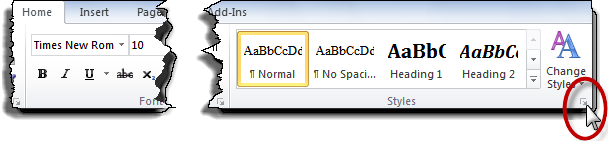
Clicking the arrow will bring you to this:
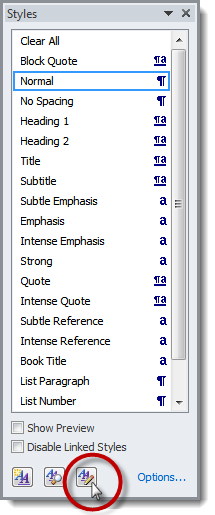
Clicking on the button circled in red above will take you to the Manage Styles dialog:
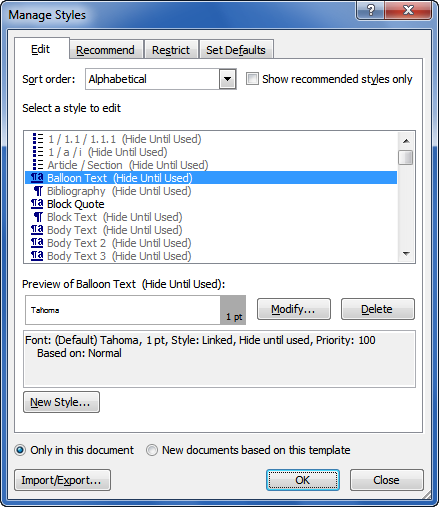
By default, Microsoft Word will not actually show you all of the Styles available within this window, so I chose the Alphabetical view in the Sort Order drop-down above and un-checked the “Show recommended styles only” box to make sure that I could see all of the Styles, including the three I needed to check. That, not coincidentally, also made it much easier to find the Styles I was looking for because they were in Alphabetical order rather than the Recommended order, which is the default (and not very helpful in moments like this).
Sure enough, I found the culprit pretty quickly. It was the Balloon Text style. Somehow, my boss had inadvertently changed the Style so that its text was 1 point size rather than its usual 8 point. (That’s a mystery we may never solve.) Now, all I had to do was click the Modify button in the middle of the window and change the text size back to 8 point.
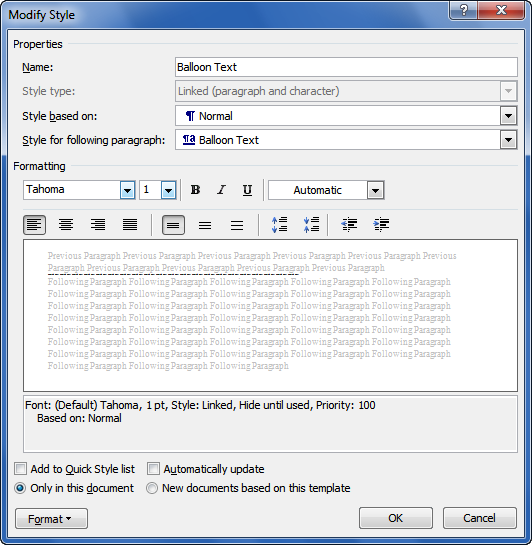
See the section under the word Formatting in the middle of the window above? To change the text size back to its original setting, all that’s needed is to click the down arrow of the text size drop down (the one that now says “1”) and pick 8 instead. Once that’s done, click OK to exit the window, and then click OK again in the Manage Styles dialog to complete the change.
Now, doesn’t this comment look much more readable?

At least I think so!

Thank U so much, this is very useful !!!
Thanks.. Fixed my problem!
Thanks! this worked for word on mac too. Was easier to find the manage styles window on the word for mac, but couldn’t have found the balloon font option without selecting view all styles options, as you suggested.
My issue is that the Balloon Text doesn’t show in that list, yet the size is set to 1pt.
Tried everything to find out how to get the style to display except the right thing (I don’t know what that is obviously!) 😉
Help!!!
In the Manage Styles dialog, are you displaying ALL styles alphabetically? Otherwise, Styles like Balloon Text will remain hidden in the list. Read the paragraph under the illustration carefully for instructions on getting ALL Styles to display.
Thanks so much – just what I needed! Cheers 🙂
Thanks a ton…
Thanks! This worked!
Thanks for posting this solution.
The problem seems to arise from compatibility issues. It’s happened several times when I’ve worked on the same document on different machines with different versions of Word – but only with the one document.
My hero! Thanks so much – Microsoft help was as useful as a concrete parachute!
Fantastic – thank you!
legend
This was a well written answer to my issue. Congratulations on being so astute on such a bizarre issue!
Brilliant, you have just saved my life!
Wow you’re a genius!!… thank you so much!!
Thanks. Beautifully explained and fixed my problem immediately.
Oh my gawd — thank you, thank you, thank you!! I work in Word Track Changes all day, every day, and encounter this problem every so often. I’m bookmarking this page!
Excellent and, as the others say, Word and the other forums were as much help as a chocolate teapot. Ridiculous. One other nuance is that you might change the style for comments text…but unless you do it for balloon text as well, it won’t have an effect!
Hi Guys,
Fantastic answer, solved my problem 100%.
I couldn’t find Balloon Text in the “As Recommended” Sort Order dialog box so I selected “Alphabetical” from the drop down list and there it was right at the top.
Ian
Thankyou!
thanks heaps – I had not idea how to deal with this event
Thanks! This worked!
Great ! That’s exactly what I was looking for…
Lifesaver! Best person of the day so far!
I think “LIfesaver” – sums it up. I had diagnosed the problem (font size specification in ballons), but how would a moral human find it to modifiy. Word help has become – no help, I think it predetermines that “there can be no problems”.
THANK YOU like THIIIIIIIIIIIIIIIIIIIIIIIS BIG! 🙂
I put balloon sizes way up to 48pt to compensate 😉
You rock, guruji.
Thank you!! I was getting unbelievably frustrated trying to figure out how to fix this!
Thank you so much! It was driving me crazy!
Thanks! Very helpful. Now how do I get it to stay at 8pt? I open a new doc w/ changes and its back to 1pt. Thanks.
Make sure that you use the option circled in red below:
Chances are, all (or most) of your documents are based on the Normal template, so once you save this, it should default to 8pt (or whatever size you decide to make it) in all your new documents.
Thank you so much! This solved my problem
Thank you so much for this post. I have been grading papers using the track changes and comment features in Word for years now and this is the first time I came across a paper set to only create super small comments. I knew there would be a way to change the font size but I couldn’t find the exact location. Again, thank you for posting these instructions it took less than a minute to fix.
Thanks a lot for this post!… I checked most of the posts on this across internet, but this was most useful!
Perfect. Couldnt have asked for more clearer instructions.
Thank you so much! My boss insists in using word and I thing that if I had had to search for 10 more minutes just to see her comments I would have done a computicide!
Every time I close Word, the settings revert. How do I make them permanent?
Depends on which settings you mean. Can you elaborate?
Thanks. It works fine!
THANK-YOU VERY MUCH!!! You don’t know how much this was causing me pain….If I could, I would give you a great big hug!
Works perfectly – excellent instructions. Thank you.
This was really helpful. .Thanks a lot
Lo maximo!!!
What would we big pharma companies who do not have a “Word Help Desk” do without you???? Thanks so much for all the great tips. I know you put a lot of time and effort into figuring things out for us. YOU are appreciated! YOUR are a ROCK STAR! Theresa
Thanks a lot for the clear instructions and images. It solved my problem!
I can’t say thank you enough!! I was spending way too much time on this and not finding the answer I needed. When I thought I had found the answer, there was not enough detail to get through the maze that is Microsoft Word 2007. Your help complete with pictures has saved me tons of time on a legal contract I have to respond to . THANK YOU.
Thank you!! Just saved the day for me. Couldn’t figure out WHAT had happened to my comment balloon!
Thank you! Very useful and easy to follow.
Thank you veryyyyyyyyyyyyyyyyyy Muchhhhhhhhhhhhhhhhhhhh. i was struggling with this for almost 2 hours. your tips helped me to resolve the comment size issue. thanks once again
Thanks a lot!
Thank you!!! This is hugely helpful, and so clearly presented!
Hi there! Do you use Twitter? I’d like to follow you if that would bee ok.
I’m undoubtedly enjoying your blog and look forward to new updates.
Scroll down to the footer and look in the center column. There are all my social media links. Glad you’re enjoying the blog!
Thank you so much for taking the time to do this. I’m in the panic your boss was in, but feel much better now. Virtual high-five!
Thank you very much! It was so helpful
This was very helpful. Thank you
This is exactly the solution i was looking for.
Now the question is, how to set that 8 as default? It goes back to 1 if you open a new file.
Look above at the Manage Styles dialog box. See that button that says “New documents based on this template”? Be sure to choose that before clicking OK.
Many thanks for the prompt reply.
I tried with the method suggested but no luck. The ballon text size still goes back to 1 when you open up a new or another existing docx file.
I also tried playing with “Import/Export” button shown in “Manage Style”, though still no luck.
If you’re working in Word in an office, it may be that your IT administrator has blocked any user-level changes to the Normal template. Talk to your IT department about this problem.
Thank you – I thought I had a major virus! I tried everything I could think of to make my balloons fatter – you have saved my career!
Thank you so much! It was very helpful! 🙂
Styles like Balloon Text will remain hidden in the list. Read the paragraph under the illustration carefully
When you select a style for your text, it will be applied to the entire text box. If you want to use a different style for part of the text, you can select that text and choose a style from the Style gallery.