
If you work in the legal field, you may often find it necessary to type special symbols and characters that aren’t anywhere on your keyboard. There are two ways to do this, and the second one is particularly handy if you use certain symbols frequently (like ¶ or § or °) and don’t want to stop to use the mouse.
Inserting special characters and symbols with Insert > Symbol
If you occasionally need to insert a character or symbol that’s not on your keyboard, go to the Insert tab and way over on the extreme right side of the Ribbon, you’ll see Symbols:
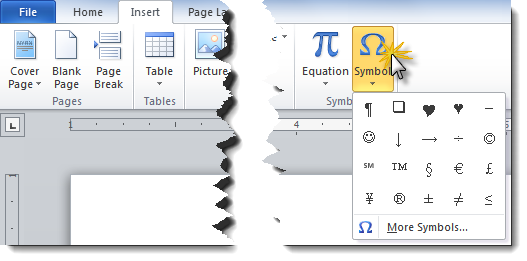
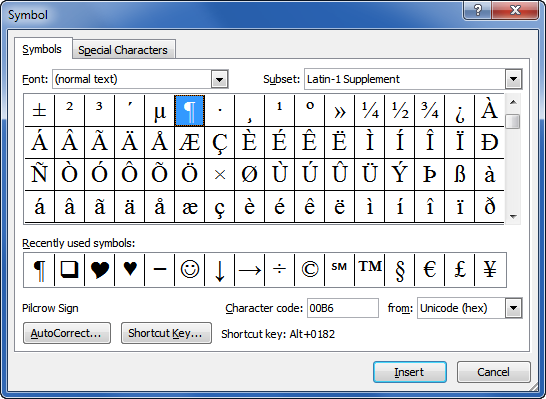
A list of commonly used symbols (including some you may have used recently) will appear in the drop-down box. Click the one you want, and continue typing. Or click More Symbols for a more extensive list:
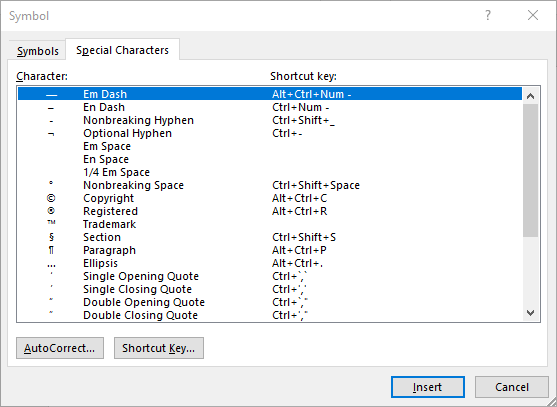
Some of the most frequently-used symbols are listed on the Special Characters tab for easy access:
Inserting special characters and symbols using shortcut keys (a.k.a. hotkeys)
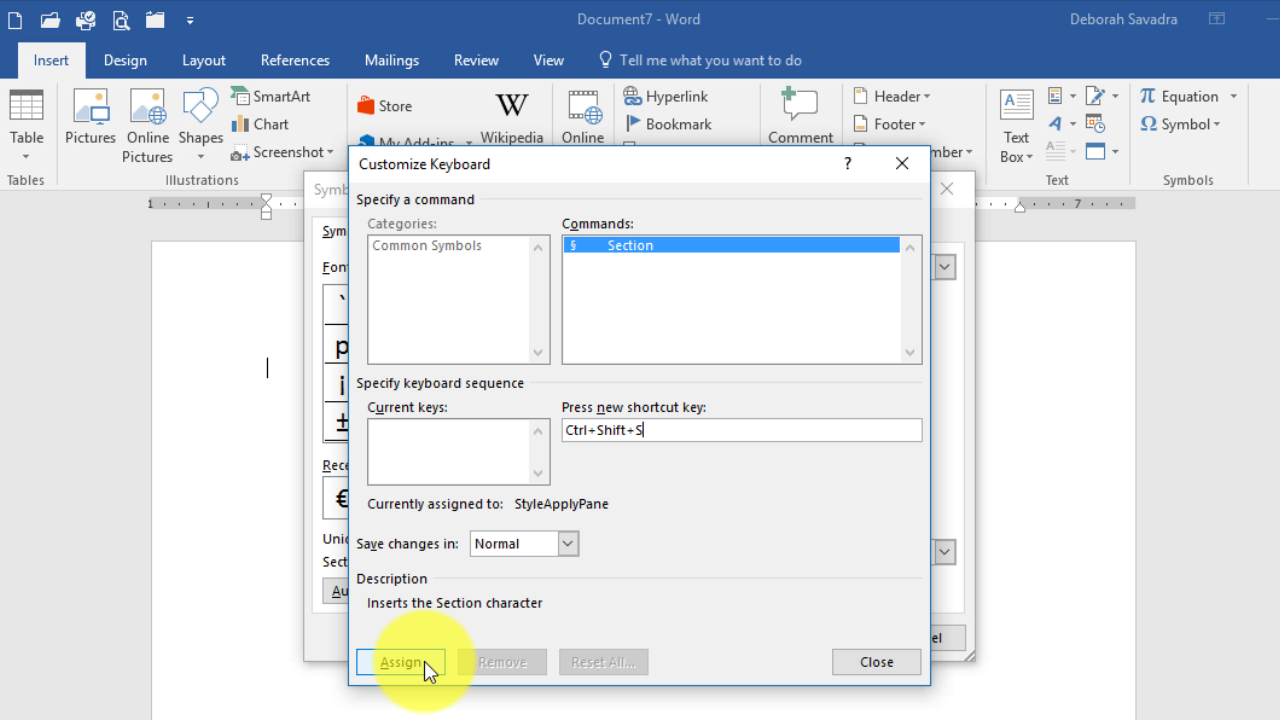
If your documents often contain special symbols like ¶ or §, the process I outlined above may seem a little tedious. You want faster access to certain symbols, so let me show you how to set up shortcut keys (a.k.a. hotkeys) that let you type a certain key combination (usually involving SHIFT and/or ALT and/or CTRL) to instantly insert a symbol.
This content is part of a course
What you’ve learned here is just a small part of my Basic Word Skills for Legal Professionals course, which will take you from “I don’t know where to find any of the commands” to “I know exactly how to do that!” Click here for more information.

This is very well done. The instructions are easy to read and follow; use of space, design and color of the webpage are pleasing. -Thanks
my 3rd choice with your 5th place hit in Google search: “word 2007 special characters legal”, beating out “lib.law.washington.edu” and “office.microsoft.com” for best answer and bookmark status.
Wow — thanks! I really appreciate the compliment, and I especially appreciate your letting me know how you got here! I’m glad I could be of some help. If there are specific topics you’d like to see covered, by all means, drop me a line via the “Ask the Guru” page (http://legalofficeguru.com/suggest-an-article/)