
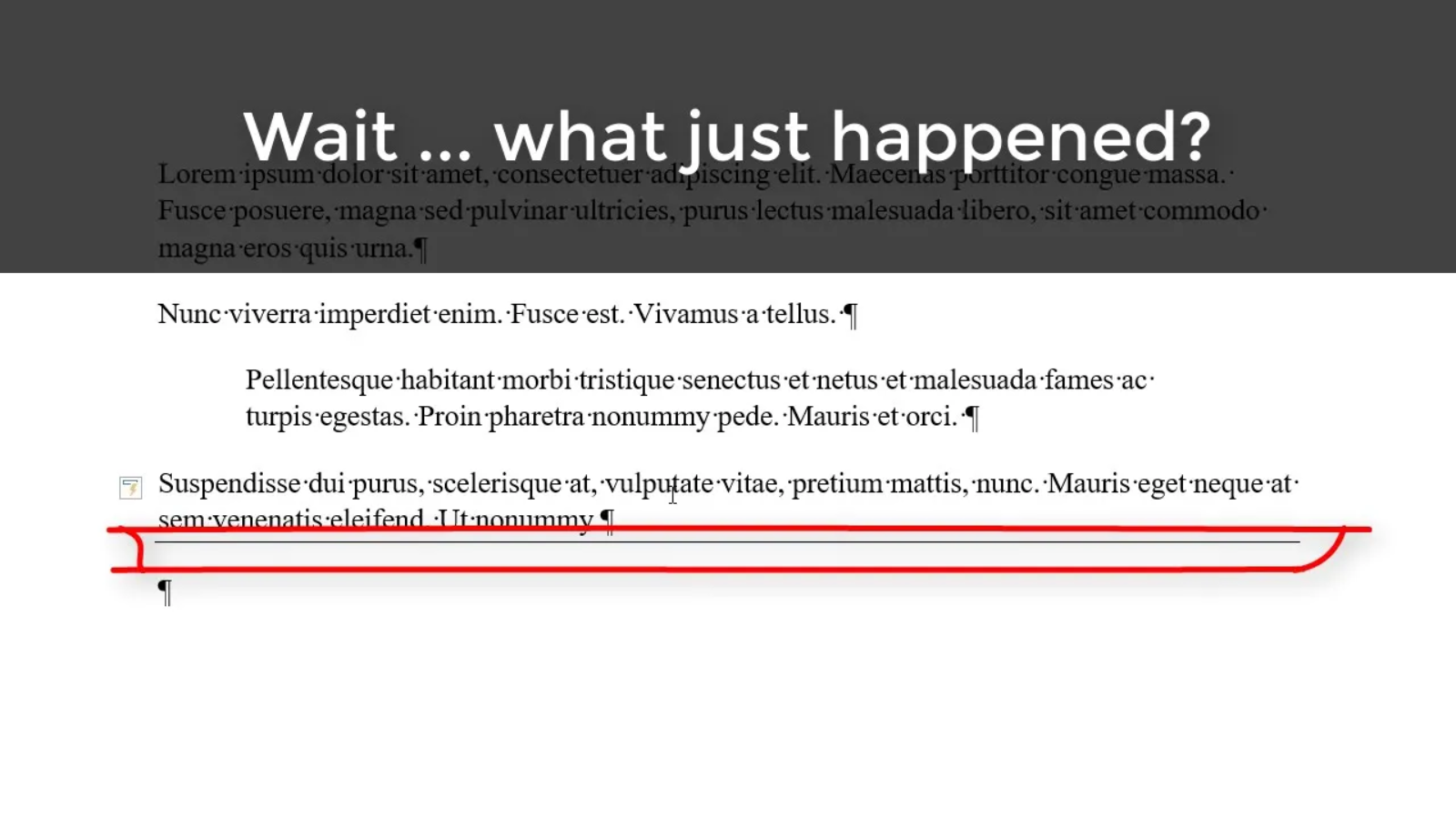
Have you ever typed a few dashes in between paragraphs (as a placeholder or whatever), hit enter, and somehow wound up with a line all the way across the page that you can’t get rid of, no matter how many times you hit the Delete key?

Infuriating, isn’t it? But I’m here to tell you: It’s both fixable and preventable. (Yay!)
What you’re experiencing is an autoformatted paragraph border. Microsoft Word, by default, attempts to autoformat certain character sequences into their rich text equivalent. Simple quotation marks become “smart quotes” (the curly kind), two dashes together become a single long dash, etc.
But when Word guesses wrong (as in the “line across the page” example), it can really screw your document up. First, let’s find out how to solve the problem when it crops up.
Fixing it after it happens
The line you’re seeing across the page is a paragraph border that Word has automatically inserted using AutoFormat. To get rid of it:
- Place your cursor into the paragraph immediately preceding the line.
- Go to Format, Borders and Shading (Word 2002-2003) or click the Border drop-down in the Paragraph section of the Home tab of the Ribbon (Word 2007 and up)
- Click None (or No Borders) to turn off all the borders.
Keeping it from happening again
If you don’t want to have a line across the page every time you type a few dashes, you can re-configure AutoFormat accordingly:
- Go to the File tab (versions 2010 and up) or or the Office Button in Word 2007, then go to Proofing (along the left-hand side) and click the AutoCorrect Options button on the right near the top.
- Go to the AutoFormat As You Type tab (all versions).
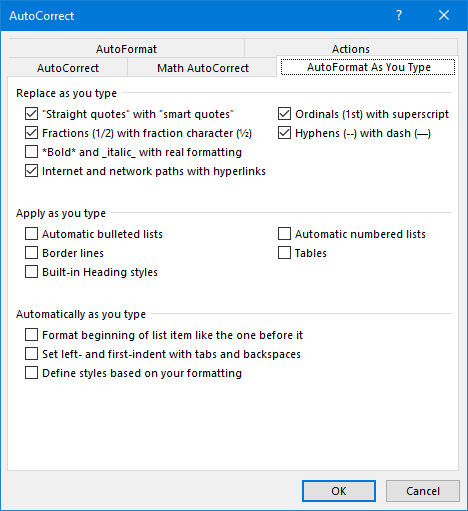
- The checkbox that controls this particular feature is found under Apply as you type (almost dead center – see it?). Uncheck the Border lines checkbox (and any of these others that have been bedeviling you lately) and click OK.
Do a little test — open a new Word document, type three dashes and hit Enter. If you don’t see a line pop up all the way across the page, you’ve successfully disabled this [annoying] feature!
Here’s the complete video version. Warning: the video below contains music, so you may want to turn your sound down. (Sorry – I was in an experimental phase on my YouTube channel.)

Thanks for this great tip!!
Glad to know that helped!
thank you so much. I was going crazy about these lines and they ruined a whole document. I was ready to type it over from scratch. But now they’re gone!
I’m happy to hear that tip salvaged your document! There are fewer bigger wastes of time than retyping anything.
Thanks a bunch!
You’re welcome!
Fantastic solution! This has been aggravating me for weeks and finally a solution that worked immediately!
Thank you,
Andrew Sikorski
Happy to help – sorry that’s been bugging you too long!
I found a problem with my legal documents. When I have to insert a line on which someone would sign their name, I would “draw” the line, hit enter and suddenly I have a line right across the page. I found I could stop this happening by simply putting a space at the end of the line before hitting “enter”. With the space, the line no longer spread across the entire page. Hope this helps someone.
That’ll work, too, but why not just tweak one setting and be done with it?
Thank you so much as this has been a fight with these lines for years and now they’re gone!!!!
Glad that’s helped!
The way I’ve been fixing it is when the line appears after I hit “enter,” I just backspace once and it disappears. I draw lines for signatures by taking the left margin (top and bottom) all the way to 3.5, then place a tab character at 7.0, turn on underline and hit Tab. The left margin will stay there for everything else you want under the line, like your attorney’s printed name, FL Bar No., address, phone, etc.
That’s how I do it (basically)!
I generally use print layout view. After the last Word update, hen I type a signature line (shift ______), I can see the line as I type but when I come back to the section (or save and re-open), the line disappears on my screen and is forever gone. It’s still there when I print however, I can just never see it on my screen. I had already changed my autocorrect to avoid the line taking over.
Hi Deborah, my “random” thing that occurs (seems regularly) involves a Table of Contents. For some reason a left tab set is inserted and in my TOC I have one line with the word “Leases,” which is shorter and the tab set interferes with the flush right tab for the page number. Any idea why that left tab set gets thrown in? I modified the style to confirm there is NOT a tab set, but somehow it always reappears. Also the paragraph number is bolded in the TOC even though that setting is not in the style. How frustrating! I sure wish I could go back to Word Perfect! 🙂
Susan
I’m frustrated right along side you on the random the paragraph number that gets bolded in the TOC even though that setting is not in the style. As recent as yesterday. I haven’t figured out why it happens so that I can fix the setting/style. I have to right click each bolded character, select font and manually set the typeface to regular. That only gets the final document “out the door.” I’d love for someone to chime in and tell us why & how to make the problem go away.
Ladies: Are either of your entries numbered (in other words, are the headings in the text using automatic numbering)? If so, this may be your solution: https://answers.microsoft.com/en-us/msoffice/forum/msoffice_word-mso_other/in-my-toc-some-of-the-heading-numbers-are-bold/e55429a3-048a-4a90-818a-0a0c48f134ae
Hi. Thanks for this. I often work with templates created by others. They contain signature lines that are thicker than the one available with the underline feature. When I try to type on one of these signature lines, it is replaced by text. If I type on it using the underline setting, it is replaced by text and the usual thin underline. Where do these thick underlines come from, and how can I create one I can also type on? This would be used, for example, as a way to add an electronic signature in the standard “s/” or “/s/” format.
You asked for comments about things that happen in Word. I go to Auto Correct Options and select AutoFormat As You Type, and then set it to replace sss with a section sign, or pr. with a paragrah symbol. But then when I’m typing along in a document and type sss, it will enter the section sign or paragraph sign, and then add a hard return. I have to go back up to the line I was on to keep typing. Why is a hard return being added after the symbol shortcuts are used? Thanks in advance if you have the answer!
You may have selected the hard return accidentally. See 0:40 at https://www.attorneyatwork.com/using-autocorrect-text-expander/ for a video demonstration on how NOT to accidentally select the hard return, or https://legalofficeguru.com/inserting-symbols-and-special-characters/#Inserting_special_characters_and_symbols_using_shortcut_keys_aka_hotkeys for detailed instructions on setting up hotkeys (which would also eliminate that problem).
Hi, Deborah —
Things that happen: Margins change to odd numbers, like .06. I would love to understand why.
This also happens frequently when defining a new Multilevel list.
Two more mysteries about Styles and Multilevel paragraph numbering:
1. Can you explain the difference between Styles and Headings? I know that Headings will show up in an outline, but Style seems to be the default . I actually don’t know how to create a Heading; only to modify a Heading.
2. In the Define new Multilevel list box, there’s a drop-down menu for “Level to show in gallery.” What’s the significance of the level that is selected for that box??
Thanks.
Hi, Phyllis! Good to “see” you!
(1) Headings are a type of Style. Specifically, they’re a Style that uses Outline Levels so they’re hierarchical:
(2) Honestly, I don’t know, and I’ve never seen it make a difference. I’ll see if any of my usual references have anything to say about it.
For the automatically generated line, just press CTRL Z. It’ll go away and you’ll have your four dashes, or however many you put there.
Yes, but again, why do that EVERY SINGLE TIME? Why not just prevent it from happening in the first place (or at least understand what it is)?
Hi, I have at the lower part of my screen the word Volume and a dotted line underneath that, all in yellow, its only been there a few days but its really annoying me.
It’s probably spelling/grammar check flagging something it doesn’t like. You should be able to right-click the word and tell spell check to ignore it.
I was going insane trying to get rid of the stubborn red line. Googled multiple sites without success. Yours worked in an instant. Thank you!
Oh, good – glad that helped!